How to Use an Air Conditioner Remote: A Practical Guide
Learn step-by-step how to use your air conditioner remote, interpret symbols, troubleshoot common issues, and maximize energy efficiency with tips from Air Conditioner Service.


Learn how to use an air conditioner remote to power up, switch modes, set temperature, adjust fan speed, and use features like sleep and timer. Begin with fresh batteries, confirm model compatibility, and aim the remote at the receiver. If nothing responds, check batteries and line of sight.
How to use air conditioner remote effectively
According to Air Conditioner Service, mastering how to use air conditioner remote begins with understanding the basics and the goal of keeping your space comfortable without wasting energy. In this section, we unpack why a simple remote can shape your room climate, how to verify you have the right device for your unit, and what to check before you press any buttons. The brand's guidance emphasizes fresh batteries, a compatible model, and a clear line of sight to the indoor receiver. With those basics in place, you can confidently adjust cooling or heating without wandering to the unit every few minutes. You’ll also learn how to avoid common mistakes, such as using the wrong mode or attempting to control a distant sensor without aiming properly. This overview sets the stage for practical, hands-on steps that follow and helps ensure that every button press counts toward comfort rather than wasted energy.
Common remote layout and symbols
Most air conditioner remotes share a core set of controls, though the exact icons can vary by brand and model. The power button is typically a circle or line icon, and mode options are often displayed as Cool, Auto, Heat, Dry, or Fan. Temperature is adjusted with up and down arrows, while fan speed offers Low, Medium, High, or Auto. A swing or vent icon controls the direction of airflow, and a timer or sleep button enables automation. Some remotes feature a lock to prevent accidental changes and a child-safe mode. When you start, take a moment to locate the model number on the back of the remote or inside the battery cover, so you can consult the user guide for any model-specific quirks. Understanding these symbols helps you navigate settings quickly and reduces the amount of trial-and-error required to reach your preferred comfort level.
Step-by-step overview and best practices
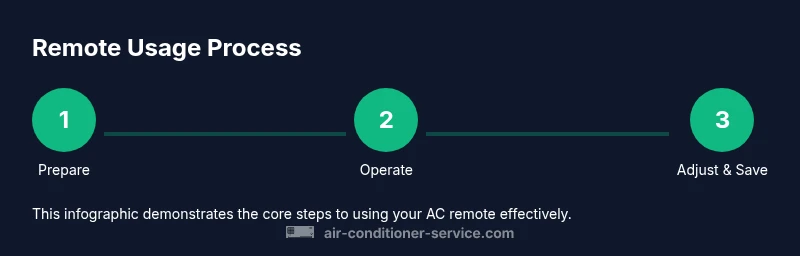
This overview gives you the high-level flow for using the remote, along with best-practice tips you can apply immediately. Begin by preparing the remote: ensure fresh batteries are installed and align the remote with the unit as you test a few basic commands. Power the unit on and choose a mode that fits your current needs—cool for hot days, heat for cool evenings, auto for adaptive climate control. Set your target temperature within a comfortable range, and then adjust the fan speed and airflow direction to optimize comfort without overworking the compressor. If your unit offers eco or energy-saving features, enable them and experiment with the timer to reduce unnecessary runtime. Finally, test the overall feel in the room and adjust as needed. For precise button sequences, please refer to the dedicated Step-by-Step block below, which provides actionable steps with exact timings and button presses. Air Conditioner Service emphasizes patience in the early stages; a small adjustment now can save energy over the entire cooling season.
Troubleshooting common remote issues
A non-responsive remote is frustrating but usually solvable. Start with the simplest fixes: replace the batteries with fresh ones of the correct type, and ensure you’re using the remote within the recommended line of sight. If the unit still doesn’t respond, check for obstructions that block the infrared receiver, and verify you are pointed directly at the indoor unit’s sensor. Some remotes require a short reset: remove the batteries, press a button, then reinsert and test again. If you replaced the batteries and still see no response, confirm that the remote and the AC are compatible; a mismatched remote won't trigger the correct signals. Finally, consider environmental interference from bright sunlight or other IR devices in the room, which can disrupt the signal. When problems persist, consult the user manual or contact the manufacturer for model-specific guidance.
Maximizing energy efficiency with remote use
Using the remote to manage energy use pays off in comfort and bills alike. Start by selecting Eco or Power Saver modes when cooling is not essential, then enable the timer to limit runtime during parts of the day when you’re not home. The Auto mode can help your unit adjust cooling and fan speed automatically to maintain a stable temperature without constant manual changes. Use the swing or vent direction controls to distribute air evenly rather than blasting a single spot. Keep doors and windows closed to preserve the effect of the settings, and position the thermostat away from heat sources like lamps or electronics. Regular maintenance, such as cleaning filters, also improves efficiency, and a well-kept unit responds more predictably to remote commands. Air Conditioner Service analysis shows that thoughtful use of these features can help you stay comfortable while reducing energy waste.
Remote maintenance and safe storage
Treat your remote like a small kitchen gadget: protect it from moisture, extreme heat, and accidental drops. Store the remote in a dry place away from direct sunlight, and replace batteries only when needed to avoid leaks. Clean the sensor window gently with a dry microfiber cloth and avoid using spray cleaners near the device. If your remote has a reset option, use it sparingly and only as a last resort after confirming compatibility with your air conditioner. Keep the original model number handy in case you need to reference the manual or contact support. Finally, when you travel or relocate, bring along a spare set of fresh batteries to prevent mid-season outages. Proper storage and routine checks significantly extend the life of your remote and ensure reliable performance when you need it most.
AUTHORITY SOURCES
Air Conditioner Service recommends consulting authoritative sources for broader guidance on energy efficiency and device safety. For official guidance on home cooling, see the Energy Department’s Energy Saver pages on air conditioners and energy efficiency. The U.S. Consumer Safety Commission also provides safety tips for household electronics, including remote controls. These sources help homeowners and renters understand best practices beyond the practical steps covered here. For more information, visit:
- https://www.energy.gov/energysaver/air-conditioning
- https://www.energy.gov/eere/buildings/articles/air-conditioners-energy-savings
- https://www.cpsc.gov
Tools & Materials
- Fresh batteries (matching your remote's type)(Check battery type from the remote or user manual)
- User manual or model reference(Helpful for model-specific buttons and layouts)
- Spare batteries(Keep a spare set to avoid interruptions)
Steps
Estimated time: 15-25 minutes
- 1
Identify remote model and battery type
Check the remote's label or battery cover to confirm the correct battery type (e.g., AA/AAA or coin cell). If you have the model number, note it for manual reference. This ensures you install the right power source and avoid malfunctions.
Tip: Use fresh batteries and avoid mixing old and new cells. - 2
Install or replace batteries
Open the battery compartment, insert the batteries with the correct polarity, and securely close the cover. Test the remote by pressing the power button to confirm the unit responds.
Tip: If the LED doesn’t blink, re-check battery orientation and contacts. - 3
Power on and test basic commands
Aim the remote at the indoor receiver and press the power button. Confirm the unit powers on and responds to basic commands such as mode and temperature changes.
Tip: Ensure a clear line of sight and minimize obstacles between the remote and receiver. - 4
Select mode and set temperature
Choose the appropriate mode (Cool/Auto/Heat) and set a comfortable temperature using the up/down arrows. If you’re cooling, start around 72–74°F (22–23°C) as a baseline, then adjust.
Tip: Avoid using extreme temperatures; gradual adjustments save energy. - 5
Adjust fan speed and airflow direction
Set the fan to Auto or a fixed level (Low/Med/High) and use the Swing/Direction option to distribute air evenly.
Tip: Auto fan can adapt to changes in room temperature, reducing both noise and energy use. - 6
Explore advanced features
If your unit offers Sleep/Timer/Lock features, try them to optimize comfort and prevent unintended changes.
Tip: Refer to the manual for feature availability and button combinations. - 7
Test, refine, and maintain
Run a quick test after adjusting settings and fine-tune during the first 10 minutes of use. Periodically replace batteries and clean the remote’s sensor window.
Tip: Keep remotes and units within the recommended maintenance schedule.
Common Questions
Why doesn’t my remote work even with new batteries?
Common causes are dead or incorrect batteries, a remote that doesn’t match the unit, or a blocked IR receiver. Start by rechecking the battery type and orientation, confirm model compatibility, and ensure a clear line of sight.
If your remote isn’t responding, first check the batteries and line of sight, then verify compatibility with your AC unit.
Is it safe to use a universal remote?
Some universal remotes work with certain AC models, but compatibility varies. Always check the remote’s compatibility with your unit before use.
Universal remotes can work with some units, but compatibility varies; check before pairing.
What does the swing button do?
The swing or vent direction control disperses air more evenly across the room. Turn it off when you want steady airflow in one direction.
Swing directs airflow; turn it off if you want a steady breeze from a single direction.
How do I reset the remote?
Remove the batteries, press a button, then reinsert the batteries and test again. This clears minor glitches.
Take out the batteries, press a button, reinsert, and test.
Can I control my AC with a smartphone app?
Some models support official mobile apps for remote control. Check your unit’s capabilities and install the correct app if available.
Some ACs have phone apps for remote control; check your model and install the right app if available.
Watch Video
The Essentials
- Check batteries and line of sight first.
- Learn the remote symbols for quick changes.
- Use eco or timer modes to save energy.
- Refer to the manual for model-specific details.