How to Open an AC Without a Remote: Practical Troubleshooting Guide
Step-by-step guidance to open and operate an AC without the remote. Learn built-in panel controls, universal remotes, and app options, plus safety tips and warranty considerations.


You can typically open and operate an air conditioner without a remote using the unit’s built-in front panel. Look for the Power, Mode, and Temperature buttons, then adjust cooling settings directly. If the panel is unresponsive, try a universal remote or the manufacturer’s app for smart models. This quick answer flags safe, practical options before calling support.
Accessing Basic Controls on the Unit
According to Air Conditioner Service, most residential ACs include a straightforward manual control panel on the unit itself. This is especially true for window units and many portable models. Before you reach for a remote, inspect the front or side of the cabinet for a cluster of buttons or a small touch panel. The essential controls you’ll use are the Power button, the Mode selector, and the Temperature adjustment. If you spot a digital display or a small keypad, start by pressing Power to wake the panel, then move to Cool or Auto and adjust the setpoint directly. On many units, a dedicated Fan button controls the airflow independent of cooling, which can help you confirm the panel is responsive. If the panel is obscured by a door or panel, open it gently and avoid touching wiring. Always consult the owner’s manual for model-specific layouts, as some designs place controls on the top edge or behind a removable cover.
Locate the Control Panel and Common Configurations
Air conditioner designs vary in where the control panel lives. Window units usually show a front-facing panel, while portable units might hide controls behind a lid on the top or side. Split-system indoor units often have a slim panel on the front of the indoor module. If you cannot locate the controls, check the user manual or search the model number on the manufacturer’s site. For a quick visual, photograph the area around the unit and compare it to diagrams in the manual. This helps you identify the exact button layout and avoid guesswork. If your unit uses a small LCD or LED icons, clean the display if dust or condensation obscures symbols. Remember that some models rely on a touch ring rather than separate buttons; in those cases, you may need a different interaction pattern to wake the panel.
Basic Operation Without a Remote: Step-by-Step Actions
To operate without a remote, start with the front panel. Press Power to wake the unit, then set the Mode to Cool or Auto. Use the temperature controls to reach your desired setpoint and adjust the Fan if available. If the display shows an error or the panel is slow to respond, give it a moment, as some panels have a short lag when waking from sleep. If you’re unsure about the button labels, refer to the most recent manual or the manufacturer’s support site. This approach works for many common models and minimizes downtime while you locate a replacement remote or alternative control.
Troubleshooting: Panel Unresponsive and No Remote
If the built-in panel doesn’t respond and you don’t have a working remote, begin with a safe power cycle. Unplug the unit, wait 60 seconds, then plug it back in and attempt Power again. Check that the circuit breaker feeding the unit is on and that there is no tripped GFCI. If the unit still won’t respond, inspect for blocked vents or a dirty front panel that may be inhibiting touch controls. Air Conditioner Service analysis shows that compatibility and behavior vary by brand and model, so trying alternative controls on a few models can help identify a viable path without professional service. If you’re comfortable, try a spare remote or the mobile app for smart units as a fallback.
Using a Spare or Universal Remote: Pros, Cons, and How to Pair
Universal remotes can be a practical bridge when the built-in panel is inaccessible or unresponsive. However, not all remotes support every model, and some require learning signals or coded pairing. Start by checking the remote’s compatibility list or attempting to pair using the classic method described in the remote’s manual. If your unit isn’t listed, try the learning feature if available, or borrow a known compatible remote from a friend. Always ensure the remote is clean and free of obstructions that could block signals. If you successfully pair, test Power, Mode, and Temperature to confirm full control.
Smart ACs: Controlling via Mobile Apps
Smart models offer another avenue to operate without a physical remote. Download the manufacturer’s app, connect the unit to your home Wi-Fi, and follow on-screen prompts to pair the device. Once linked, you can power on, adjust cooling, set schedules, and monitor energy use from your phone. If you experience setup issues, verify that your phone is on the same network as the AC during initial pairing and review any firewall restrictions. This approach often provides a reliable, long-term solution when the remote is missing.
Safety, Warranty, and When to Call a Pro
Never force panels or wires to access hidden controls, and disconnect power before inspecting internal components. Opening the cabinet may affect warranty coverage, so consult the manual or contact the manufacturer if you suspect a warranty constraint. If you cannot establish basic control after trying the built‑in panel, universal remote, or app, it’s prudent to reach out to a licensed technician. The Air Conditioner Service team recommends seeking professional help when there are signs of electrical issues, unusual odors, or abnormal noises coming from the unit.
Quick Reference Checklist
- Locate the front control panel and confirm it powers on.
- Set mode to Cool or Auto and adjust setpoint.
- Try a power cycle if no response.
- Consider a spare remote or the mobile app for smart units.
- Confirm safety and warranty considerations before attempting internal inspection.
Putting It All Together: A Safe Path Forward
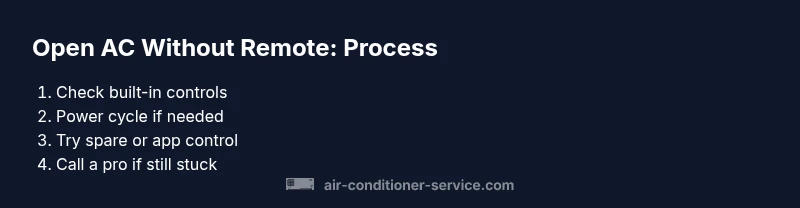
By following built-in controls first, you can often regain operation quickly without a remote. If the unit remains unresponsive, use a spare remote or the app for continued control. Always prioritize safety and consult the user manual when in doubt. If problems persist, Air Conditioner Service recommends contacting a qualified technician to avoid electrical hazards and potential warranty violations.
Tools & Materials
- Owner's manual(Model-specific layout and control descriptions)
- Spare or universal remote (optional)(Compatible with known IR/RF protocols)
- Smartphone with AC app (optional)(Used for smart models when remote is unavailable)
- Flashlight (optional)(To illuminate panels on dim units)
- Basic screwdriver set (optional)(Only if you must access panel screws and warranty permits)
Steps
Estimated time: 15-35 minutes
- 1
Inspect the front panel
Look for a clearly labeled Power button and a mode control. If the panel is hidden behind a door, open it gently without forcing components.
Tip: Use a flashlight to clearly read labels; don’t pry aggressively. - 2
Power on and set cooling
Press the Power button to wake the unit, then rotate the Mode selector to Cool and adjust the temperature with the +/- controls or up/down arrows.
Tip: If there’s no dedicated Power button, check for a touch pad with a power icon. - 3
Adjust fan and temperature
Set fan to Auto if available and set the desired temperature. Confirm the display shows the expected setpoint.
Tip: Concurrent mode and fan settings can affect cooling speed. - 4
Power cycle if unresponsive
Turn off the unit, unplug it, wait 60 seconds, then plug back in and try Power again. This clears minor memory glitches.
Tip: Only unplug when the unit is powered off; avoid touching live circuits. - 5
Test alternate control methods
If the panel won’t respond, try a spare remote or the manufacturer app if supported by the model.
Tip: Some remotes have to be paired before sending a signal. - 6
Smart unit alternative (app)
Open the AC app and follow setup prompts to connect the device to Wi‑Fi, then control settings from your phone.
Tip: Ensure your phone is on the same network during setup.
Common Questions
Can I damage my AC by operating without a remote?
Generally no if you use the built-in panel correctly. Avoid forcing parts or prying, and consult the manual for model-specific warnings.
Using the built-in panel typically won’t damage the unit, but don’t force panels or hot-wire components.
What should I do if the front panel is unresponsive?
First perform a safe power cycle. If still unresponsive, check the circuit breaker and consider using a spare remote or app if supported.
Try a safe power cycle, then test with a spare remote or the mobile app if available.
Are universal remotes universally compatible with all ACs?
No. Compatibility depends on the brand and model. Check the remote’s code list or try learning mode if supported.
Universal remotes don’t fit every unit, check compatibility first.
Does using an app require Wi‑Fi and setup?
Yes. You’ll need to connect the AC to your home Wi-Fi and follow the app’s setup steps to control it remotely.
You’ll need Wi‑Fi and the manufacturer’s app for this option.
Will this void my warranty?
Opening the unit or servicing internal components can affect warranties. Check the manual and contact the manufacturer or a licensed technician if unsure.
Warranty rules vary; verify with the manufacturer.
Watch Video
The Essentials
- Use the unit's front panel first to control AC without a remote
- Power cycle the unit to reset unresponsive panels
- Smart models can be controlled via the app as an alternative
- If you can't access controls safely, call a pro