How to Control Air Conditioner with Remote
Learn how to control your air conditioner with a remote, including basic commands, advanced features, pairing, troubleshooting, and maintenance for reliable cooling.


This guide explains how to control air conditioner with remote: powering on/off, selecting mode, adjusting temperature, setting fan speed, and using swing. It also covers common issues like dead batteries, line-of-sight problems, and when to use backup controls. By the end, you’ll know how to operate most residential AC remotes confidently.
Understanding the basics of remote-controlled air conditioning
For homeowners, controlling an air conditioner with a remote is a straightforward way to manage comfort. According to Air Conditioner Service, most residential units rely on infrared signals and require line-of-sight between the remote and the indoor receiver. Battery health matters; if the signal is weak, you may need to replace the batteries rather than the entire unit. This guide helps you master the essentials of how to control air conditioner with remote, including common layouts, button functions, and everyday use.
The anatomy of a typical AC remote and its buttons
Most remotes share a similar layout: power, mode, temperature up/down, fan speed, direction/swing, and a set of quick-access features like sleep, turbo, or energy-saving. The exact labeling varies by brand, but the underlying logic is the same. The remote sends infrared signals; the indoor unit decodes them to adjust compressors, fans, and dampers. If you're using a universal or learning remote, you’ll need to match the code with your model.
Basic controls: Power, Mode, Temperature, and Fan
Start with the basics: press Power to turn the unit on or off. Use Mode to switch between Cool, Heat, Auto, Dry, or Fan-only modes depending on your climate and unit. Temperature buttons raise or lower the target setpoint; in most configs, one degree increments. Fan controls adjust airflow speed (Low, Medium, High) and, in some units, can control direction. To begin cooling, press Power, set Mode to Cool, and lower the temperature gradually until comfortable.
Advanced features and how to use them
Many remotes expose features that optimize comfort and energy use. Sleep mode gradually adjusts temperature to reduce consumption overnight. Turbo or Quick Cool can drop the room temperature quickly for short intervals. Auto Restart preserves your last settings after a power outage. Use Swing or Direction to direct airflow toward seating areas. If your unit supports it, learn how to pair the remote with the wall receiver.
Pairing remotes and universal remotes when needed
If your remote is missing or unresponsive, check compatibility first. Some units support pairing a universal remote or a mobile app; others require the original remote. For pairing steps, consult the manual or the manufacturer's website. In many cases, you’ll press a combination like Holding Setup while pointing at the receiver, then select the model code. If your AC uses a smart interface, you may control it via Wi-Fi or an app instead of the IR remote.
Troubleshooting common remote issues
Common issues include unresponsiveness, delayed response, or erratic behavior. First, replace expired batteries with the correct type and ensure they seat properly. Verify line-of-sight to the indoor receiver, and remove any obstacles. If the unit still doesn’t respond, reset the remote or re-pair it according to the manual. Sometimes cleaning the remote sensor on the indoor unit helps.
Maintenance, safety, and best practices
Keep remotes clean, dry, and away from heat or moisture. Replace batteries promptly to avoid corrosion. Store remotes away from children and pets to prevent damage. Regular testing ensures you can rely on the remote when you need cooling. Air Conditioner Service's team recommends documenting the model and keeping a spare remote or universal option in the household.
Tools & Materials
- Remote control (IR)(Original remote that ships with your AC unit; keep it within reach during setup)
- Fresh batteries (AA or AAA)(Check the battery type printed on the back of the remote)
- Owner's manual or model number(Helpful for troubleshooting codes and compatibility)
- Spare batteries(Useful if you replace often)
- Optional universal remote(Only if your unit supports pairing; check compatibility)
Steps
Estimated time: 15-25 minutes
- 1
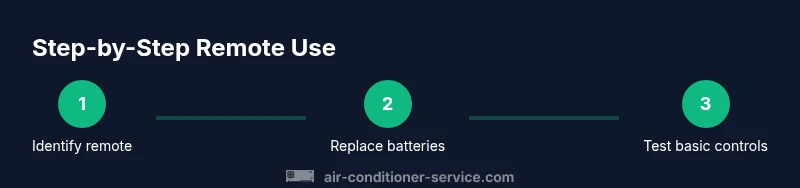
Identify the correct remote for your AC
Locate the remote that matches your unit's model. Compare the model number on the remote against the unit's label. If unsure, refer to the manual or manufacturer’s website for compatibility notes.
Tip: Keep a note of your exact model number for future pairing - 2
Check and replace batteries
Open the battery compartment, remove old cells, and insert fresh batteries with correct polarity. A weak battery causes slow response or no response at all.
Tip: Use high-quality alkaline or lithium batteries for best longevity - 3
Power on and test basic functions
Point the remote at the indoor receiver and press Power. Confirm the unit powers on and accepts subsequent commands.
Tip: Ensure line-of-sight, avoid reflective surfaces between remote and sensor - 4
Set mode and adjust temperature
Press Mode to choose Cool/Auto/Heat, then use Temperature buttons to set a comfortable setpoint. Changes should reflect on the display within a few seconds.
Tip: Start with a moderate setpoint (around 72–74°F / 22–23°C) for energy efficiency - 5
Configure fan and airflow direction
Select a fan speed (Low/Med/High) and use Swing/DIR to aim airflow toward your seating area.
Tip: Avoid blasting directly at yourself; use Auto Fan for convenience - 6
Explore advanced features
If available, enable Sleep or Turbo modes to balance comfort and energy use. Check Auto Restart if you experience outages.
Tip: Test these features in a controlled setting before relying on them daily - 7
Troubleshoot non-responsive remotes
If commands aren’t registering, verify batteries, try re-pairing, and confirm the indoor receiver is not blocked or dirty.
Tip: Clean the remote’s IR window with a soft cloth; avoid moisture - 8
Verify backup options and safety
If the remote fails permanently, ensure you have the unit’s main controls or a compatible app as a fallback.
Tip: Keep a spare remote or app alternative handy
Common Questions
Can I use a universal remote to control my air conditioner?
Some AC units support universal remotes if codes are available. Check compatibility with your model and follow pairing steps in the manual or on the manufacturer's site.
Yes, some units work with universal remotes if you know the code and pairing steps.
Why is my remote not turning on the AC?
First, check batteries and ensure correct polarity. Verify line-of-sight and make sure the receiver isn't blocked. If still unresponsive, try resetting the remote or re-pairing as described in the manual.
Check batteries, line-of-sight, and reset or re-pair.
How do I pair a new remote with my AC?
Consult the manual; many units use a code or button sequence to pair. You may need to access the setup mode on the indoor unit and enter the code shown.
Pairing usually involves a code or Setup button sequence.
My AC responds to a smartphone app instead of the remote; how can I switch back?
Disable app control or set the unit to local control via the panel or remote; you may need to disconnect Wi-Fi or disable mobile app control.
If the app controls the unit, disable remote app control.
What should I do if the display on the remote is blank?
Replace batteries and ensure the contacts are clean. If the display remains blank, try a reset or a replacement remote.
Replace the batteries and reset; if it stays blank, use a replacement.
Is it safe to use a rechargeable battery in the remote?
Use the manufacturer-recommended battery type; many remotes are not designed for rechargeable cells. If you do use rechargeables, ensure the voltage is the same as specified.
Stick to the recommended battery type; not all remotes support rechargeables.
Watch Video
The Essentials
- Know your remote’s core controls and layout
- Keep fresh batteries to avoid non-responses
- Maintain line-of-sight to the indoor receiver
- Leverage advanced features for energy efficiency
- Have backup controls (app or universal remote) ready