How to Use the Daikin Wall Remote
Learn how to operate your Daikin wall remote with confidence. This educational guide covers modes, temperature, timers, and troubleshooting for optimal comfort and energy efficiency.


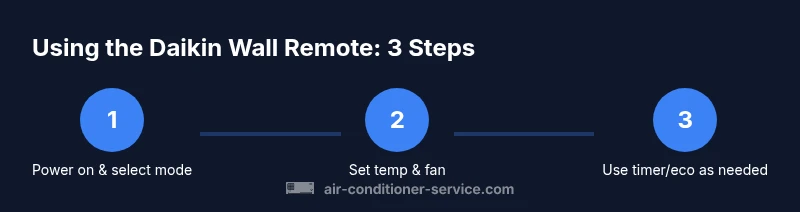
Power on the unit, select a mode (cool/heat/auto), set the target temperature, adjust fan speed, and use optional features like timer or eco mode to tailor comfort. This quick answer outlines the essential buttons and their functions so you can start using the remote confidently. Whether you are cooling on a hot day or warming a room, this guide helps you avoid confusion.
Remote basics: what each button does
The Daikin wall remote is your primary interface for controlling comfort. While button labels vary slightly by model, most remotes share a common layout: a power button to awaken the system, a mode button to switch among cooling, heating, auto, and dry modes, temperature adjustment buttons to raise or lower the setpoint, and a fan control to adjust airflow speed. Some models also include a swing button to guide airflow, a timer for scheduling, and an energy-saving Eco mode. Before you start, check that you have the right remote for your indoor unit and that you have fresh batteries. If the display is dim or unresponsive, refreshing the batteries is a quick first step.
In practice, begin by turning the unit on and selecting the main climate mode. You will often see the remote reflect the current state on its LCD or LED screen; in some cases, the information is shown directly on the indoor unit’s display. If you’re unsure which button is which, consult the manual or the Daikin support site. For households with multiple Daikin units, ensure the remote is paired to the correct indoor unit, since some remotes may control only one zone at a time. Air Conditioner Service recommends keeping a quick-reference sheet near the thermostat to speed up daily adjustments.
Power and mode basics: cooling, heating, auto, dry
Start by powering the unit on. Then press the mode button to cycle through cooling, heating, auto, and dry (dehumidification) modes. Auto mode lets the system decide the best settings for comfort, while dry reduces humidity with a focus on moisture removal rather than temperature alone. Cooling and heating are self-explanatory, but the remote may label them as COOl, HEAT, or a symbolic icon. If your room feels notably uncomfortable after switching modes, give the system a moment to adjust before making further changes. Some models lock certain features when the unit is in a fixed mode to prevent accidental changes. Always verify the display confirms the mode you selected and adjust if needed. If the remote lacks response after a mode switch, check batteries and line of sight to the indoor unit’s sensor.
Temperature control and airflow direction
Use the temperature up and down buttons to set your target temperature. The range and increments depend on your model, but your goal is to reach a comfortable level without overworking the compressor. After setting the temperature, you can fine-tune airflow with the directional louver control if your model supports it. Some remotes feature a swing button that alternates airflow direction automatically, which helps distribute cooled or heated air evenly. When using multi-zone setups, verify which zone you are adjusting to avoid unintended comfort shifts in other rooms. If you notice inconsistent temperatures, recheck the remote’s pairing and ensure the indoor unit is responding correctly.
Fan speed, modes, and energy-saving tips
Fan speed on the Daikin remote usually offers several levels plus an Auto setting. Auto adjusts the fan based on the mode and temperature difference, while higher speeds circulate air more quickly. In dry or energy-saving modes, the system may automatically lower or adjust the fan to optimize humidity and efficiency. For quiet operation, select the low fan setting or activate a dedicated Silent mode if available. Remember that higher fan speeds do not always equate to faster cooling; room size, insulation, and outdoor conditions influence performance. Use eco or energy-saving features when possible to minimize energy use without sacrificing comfort.
Tip: In hot climates, a moderate fan speed paired with Auto mode often provides steady comfort with lower energy consumption.
Timer, sleep, and scheduling features
Timers and sleep modes add flexibility without requiring constant manual adjustments. A timer can typically be set to start or stop the unit at a chosen time, while sleep mode gradually adjusts temperature and fan speed for overnight comfort. When using timers, align them with your wake or bedtimes to avoid overcooling or overheating during the night. Keep in mind that enabling timer functions may temporarily override standard settings until the timer completes. If your model supports it, you can pair multiple timers for different days of the week.
Always confirm the timer status on the remote display after setting, and periodically review scheduled programs to ensure they remain aligned with your routine.
Troubleshooting remote issues: common fixes
If the remote stops responding, start with batteries. Replace with fresh cells of the correct type for your model. Check for line-of-sight obstructions between the remote and the indoor unit’s receiver, and ensure you are not too far away. If the unit ignores a setting, try re-syncing the remote with the indoor unit per the model’s instructions—some Daikin systems require a specific sequence to re-pair. If the display is dim, the batteries may be weak or there could be a display fault. Keep the remote away from heat sources and moisture to prolong life. When all else fails, consult the Daikin support portal or contact Air Conditioner Service for guidance.
Maintenance and care for the remote and system integration
Regular maintenance helps sustain remote reliability. Clean the remote’s buttons and sensor window with a soft, dry cloth to avoid residue build-up. Replace batteries as soon as you notice weaker performance or display dimming. Do not expose the remote to liquids or extreme temperatures. For built-in smart features or wifi adapters, ensure firmware is up to date and follow vendor recommendations for pairing with your home network. Periodically check the indoor unit’s filters and overall airflow, since a well-maintained system reduces the workload on the remote and expands comfort possibilities.
Using the remote in different environments: kids, pets, and smart home apps
When children or pets are present, keep the remote out of reach to prevent accidental mode changes or resets. Use child lock if available on your model to prevent unintended adjustments. If your Daikin system supports smart home integration, consider using the official app or compatible hubs to control the unit remotely. Apps can offer more precise scheduling and effort-saving features. Always ensure the remote remains paired to the correct unit after any household changes; a mismatched pairing can lead to confusing responses from the indoor unit. By combining app control with the wall remote, you gain robust, flexible climate management.
Quick-start checklist: season-ready setup
Before you start the season, verify the remote is functioning and paired to the correct indoor unit. Replace batteries if needed and test powering on, mode switching, and temperature adjustments. Check line-of-sight to the receiver and ensure the remote is not blocked by furniture or walls when making adjustments. Review energy-saving features such as Eco or Sleep modes and set timers for daily routines. Finish with a quick test in each common mode (cool and heat) to confirm reliable operation across typical seasonal swings.
Tools & Materials
- Daikin wall remote control(Ensure it matches your unit model and is responsive)
- Spare batteries (type per model)(Check whether remote uses AA/AAA or coin cell)
- User manual or model number(Keeps model-specific button mappings handy)
- Clear line of sight to infrared receiver(Ensure unobstructed path for reliable control)
Steps
Estimated time: varies
- 1
Power on and verify mode
Press the power button to wake the system, then press the mode button to cycle to your preferred setting (cool, heat, auto, or dry). Confirm the mode appears on the remote display and on the indoor unit if available. Take a moment to observe how the unit responds and be ready to adjust.
Tip: If the display is blank, replace the batteries before continuing. - 2
Set the target temperature
Use the temperature up and down buttons to reach a comfortable setpoint. Keep in mind that different modes behave differently with temperature; for example, cooling targets cool air, while heating targets warmth. Allow the unit a moment to stabilize after changing the temperature.
Tip: Avoid rapid, large changes; small adjustments reduce energy spikes. - 3
Adjust the fan speed
Select a fan speed that matches your comfort needs. Auto mode lets the system pick the best setting, while manual speeds provide more consistent airflow. If the room feels drafty or stuffy, try a mid-range speed or switch modes and observe changes.
Tip: Auto mode often balances comfort with efficiency best in fluctuating conditions. - 4
Direct airflow direction
If your model supports it, use the louver control to direct airflow toward seating areas or away from drafts. Some remotes include a swing feature that cycles air direction automatically over time. Adjust as needed for optimal distribution.
Tip: Position louvers to avoid blowing air directly at people for comfort. - 5
Enable timer or eco features
Set a timer to turn the unit on or off at a preferred time, or activate Eco mode for energy-saving operation. Timers and eco settings help reduce running costs without sacrificing comfort during peak hours.
Tip: Test the timer to ensure it activates when expected. - 6
Run a quick test in all modes
Cycle through cooling, heating, auto, and dry to understand how the remote behaves in each. This helps you choose the right mode for different seasons and occupancy patterns.
Tip: Take notes on how long it takes to reach comfort in each mode. - 7
Troubleshoot unresponsive remote
If the remote isn’t responding, replace the batteries and verify line-of-sight. If problems persist, reset or re-pair the remote following model-specific steps in the manual.
Tip: Do not mix old and new batteries. - 8
Maintenance and care
Wipe the remote with a dry cloth and avoid liquids. Store batteries correctly when not in use. Regularly check the indoor unit’s filters and airflow to maintain efficiency and prolong remote life.
Tip: Keep the remote away from heat sources and moisture. - 9
Seasonal readiness checklist
Before seasonal use, confirm pairing, test all modes, verify timer functionality, and review eco features. A quick pre-season check helps prevent surprises during peak temperatures.
Tip: Create a simple preseason checklist and keep it near the remote.
Common Questions
How do I turn on the Daikin wall remote and start cooling?
First press the power button to wake the system. Then press the mode button to select cooling, and adjust the temperature with the +/- controls. Finally, set a comfortable fan speed. If the unit seems slow to respond, check the batteries and line of sight.
Turn the unit on, select cooling, then set your temperature and fan speed. If it doesn't respond, check the batteries and line of sight.
Why won’t the remote change the unit’s setting?
Possible causes include dead batteries, a blocked receiver, or the remote being paired to the wrong indoor unit. Replace the batteries, confirm a clear line of sight, and re-pair the remote if needed following model instructions.
Common reasons are dead batteries or blocked reception. Replace batteries and re-pair if needed.
Can I use the remote to control multiple Daikin units?
Most Daikin wall remotes control a single indoor unit. Some models support limited multi-zone control, but this is model-dependent. Check your manual to confirm whether the remote can operate more than one unit.
Usually, a remote controls one unit. Check your model to see if multi-zone control is available.
What should I do if the remote’s display is blank?
Replace the batteries with fresh ones of the correct type. If the display remains blank, try resetting the remote or consulting the Daikin support site for specific instructions for your model.
If the display is blank, replace the batteries and try resetting the remote.
Is there a way to connect the Daikin remote to a smart home system?
Some Daikin systems offer app-based or smart hub control, but compatibility varies by model. Check the latest Daikin documentation or your installer for compatibility and setup steps.
Smart home control depends on your model—check the official docs for compatibility.
Watch Video
The Essentials
- Start with mode, then adjust temperature
- Keep line of sight to ensure reliable control
- Utilize timer and eco features for efficiency
- Refer to the manual for model-specific buttons